Upload/Import Download/Export a File to/from Oracle DB

What motivated me to write this post is that this is a really interesting task.

The general idea one have about databases is that they only serve the purpose of storing plain values as numbers, dates and text. A database does not do just that but even more allowing you to store a whole file as an Excel spreadsheet or an MP3 file in a column you define in your table.

To illustrate that, let’s suppose you were assigned the task of saving a spreadsheet in the database. This spreadsheet contains valuable data (as taxes values for each federal state) that’ll be used throughout your application. A user will upload that spreadsheet to the database and when someone else want to see the content of that spreadsheet it’s just a matter of clicking a download button to get it back. Pretty simple, isn’t it?

To accomplish that I’ll use Oracle database, more specifically Oracle Database 10g Express Edition (free to use).

The SQL code I used to create the database objects is as follows:

----------------------------------------------------------
-- Export file for user ORACLETEST                      --
-- Created by Leniel Macaferi on 3/13/2010, 11:43:17 PM --
----------------------------------------------------------

-- Create database tablespace
create tablespace oracletest datafile 'C:\oracletest.dbf'
size                                  20M
autoextend on maxsize                 unlimited
extent management local uniform size  64K;

-- Create user and Grant permissions
create user oracletest identified by oracletest default tablespace oracletest;
grant connect, resource to oracletest;
grant create session to oracletest;
grant unlimited tablespace to oracletest;
grant dba to oracletest;

-- Create table
create table FILES
(
  ID          NUMBER not null,
  UPLOAD_DATE DATE not null,
  CONTENT     BLOB not null,
  TYPE        VARCHAR2(64) not null,
  NAME        VARCHAR2(128) not null,
LENGTH NUMBER not null
);
alter table oracletest.FILES
  add constraint ID primary key (ID);

-- Create sequence
create sequence oracletest.SEQ_FILES
minvalue 1
maxvalue 999999999999999999999999999
start with 1
increment by 1
nocache;
-- Create import/upload procedure
create or replace procedure sp_import_file(
upload_date
in varchar2, content files.content%type, type in varchar2, name in varchar2,
length in number, id
out number) is begin select seq_files.nextval into id from dual; insert into files (id, upload_date, content, type, name, length) values (id, to_date(upload_date, 'mm/dd/yyyy hh:mi:ss pm'), content, type, name,
length
); end sp_import_file;

I’ll use an ASP.NET MVC application to show the process of uploading/importing downloading/exporting a file to/from an Oracle database.

The app has a tab called Import/Export File. Clicking on this tab takes you to a View that contains a file upload control and two buttons. When the user clicks the Import button the file will be uploaded/imported/saved to/in the database. When the user clicks the Export button the last file saved in the database will be downloaded/exported to the user’s computer.

The following is a screenshot of the application:

Oracle Import Export File ASP.NET MVC Application
Figure 1 - ASP.NET MVC Application UI

The following is a screenshot of the Files table which already has some files:

Oracle Import Export Files Table
Figure 2 - Oracle Files Table

As you can see the thing that makes it possible to import a whole file to a table is the type of the column that’ll hold the file; in this case the type is BLOB.

In the lines that follow I’ll present the source code I used to implement this sample ASP.NET MVC application.

It’s always good to view the Solution Explorer inside Visual Studio so that I can highlight the files I have created:

Oracle Import Export File Visual Studio Solution Explorer Figure 3 - Solution Explorer in Visual Studio

This is the C# code used in the upload/import process (inside OracleFileModel.cs):

/// <summary>
/// Imports any file to an Oracle database table that has a column of type BLOB.
/// </summary>
/// <param name="uploadDate">Date of upload/importation</param>
/// <param name="fileName">File name</param>
/// <param name="filePath">File path on the server</param>
/// <param name="fileType">File type</param>
/// <param name="fileSize">File size in bytes</param> /// <returns>Id of Row just inserted</returns> public static int Import(string uploadDate, string fileName, string filePath, string fileType, int fileSize) { OracleConnection connection = GetOracleConnection(); connection.Open(); OracleTransaction transaction; transaction = connection.BeginTransaction(); OracleCommand cmd; cmd = connection.CreateCommand(); cmd.Transaction = transaction; // Creates a temporary blob object on the database. This object will store the file content. cmd.CommandText = "declare xx blob; begin dbms_lob.createtemporary(xx, false, 0); :tempblob := xx; end;"; cmd.Parameters.Add(new OracleParameter("tempblob", OracleType.Blob)).Direction = ParameterDirection.Output; cmd.ExecuteNonQuery(); // Getting the content of the file... byte[] buffer = GetFileContent(filePath); // Oracle object responsible for storing the File content. OracleLob tempLob; // Assigning tempLob the blob object created on the database. tempLob = (OracleLob)cmd.Parameters[0].Value; tempLob.BeginBatch(OracleLobOpenMode.ReadWrite); // Writing the file content to tempLob. tempLob.Write(buffer, 0, buffer.Length); tempLob.EndBatch(); cmd.Parameters.Clear(); // The name of the Procedure responsible for inserting the data in the table. cmd.CommandText = "SP_IMPORT_FILE"; cmd.CommandType = CommandType.StoredProcedure; cmd.Parameters.Add(new OracleParameter("upload_date", OracleType.VarChar)).Value = uploadDate; cmd.Parameters.Add(new OracleParameter("content", OracleType.Blob)).Value = tempLob; cmd.Parameters.Add(new OracleParameter("type", OracleType.VarChar)).Value = fileType; cmd.Parameters.Add(new OracleParameter("name", OracleType.VarChar)).Value = fileName;
cmd.Parameters.Add(new OracleParameter("length", OracleType.Number)).Value = fileSize; cmd.Parameters.Add(new OracleParameter("id", OracleType.Number)).Direction = ParameterDirection.Output; try { cmd.ExecuteNonQuery(); } catch (Exception ex) { transaction.Rollback(); throw new Exception(ex.Message); } transaction.Commit(); connection.Close(); // Returning the Id of the row just inserted in table FILES. // This Id could be used to associate the file inserted with another table, for example, // if you had to parse the content of a spreadsheet and save each line in other table. return int.Parse(cmd.Parameters[4].Value.ToString()); }
This is the C# code used in the download/export process (inside OracleFileModel.cs)::
/// <summary>
/// Exports the last file imported to an Oracle database table that has a column of type BLOB.
/// </summary>
/// <returns>File</returns>
public static MyFileModel Export()
{
    MyFileModel file = new MyFileModel();

    OracleConnection connection = GetOracleConnection();
    connection.Open();

    OracleCommand cmd;
    cmd = connection.CreateCommand();

    // Gets the last File imported.
    cmd.CommandText = "select content, name, type from (select content, name, type from files f order by f.upload_date desc) where rownum = 1";

    byte[] fileContent;

    try
    {
        OracleDataReader reader = cmd.ExecuteReader();

        using (reader)
        {
            reader.Read();

            if (!reader.HasRows)
            {
                return file;
            }

            OracleLob blob = reader.GetOracleLob(0);
            OracleString fileName = reader.GetOracleString(1);
            OracleString fileType = reader.GetOracleString(2);

            fileContent = new byte[blob.Length];

            blob.Read(fileContent, 0, (int)blob.Length);

            file.Content = fileContent;
            file.Name = fileName.Value;
            file.Type = fileType.Value;
        }
    }
    catch (Exception ex)
    {
        throw new Exception(ex.Message);
    }

    connection.Close();

    return file;
}
/// <summary>
/// Gets an Oracle connection to the database.
/// </summary>
/// <returns>OracleConnection</returns>
private static OracleConnection GetOracleConnection()
{
    string user = ConfigurationManager.AppSettings["user"];
    string password = ConfigurationManager.AppSettings["password"];
    string dataSource = ConfigurationManager.AppSettings["dataSource"];

   return new OracleConnection("Data Source=" + dataSource + ";User Id=" + user + ";Password=" + password + ";");
}

/// <summary>
/// Get the content of the file in byte array buffer.
/// </summary>
/// <param name="path">File path on the server</param>
/// <returns>File content</returns>
private static byte[] GetFileContent(string path)
{
    Stream fs = File.OpenRead(path);
    
    byte[] buffer = new byte[fs.Length];

    int q = fs.Read(buffer, 0, Convert.ToInt32(fs.Length));

    fs.Close();

    return buffer;
}

This is the code implemented for the OracleFileController:

public class OracleFileController : Controller
{
    //
    // GET: /OracleFile/

    public ActionResult OracleFile(FormCollection formCollection)
    {
// Handles the button that posted to the server...
// OracleFile.aspx has 2 submit buttons.


if (formCollection["Import"] != null) { Import(); } else if (formCollection["Export"] != null) { return Export(); } return View(); } /// <summary> /// Imports a file from the user computer to the database. /// </summary> /// <returns></returns> private void Import() { foreach (string fileName in Request.Files) {
// Gets the file the user selected. HttpPostedFileBase file = Request.Files[fileName];
if (file.ContentLength > 0) {
// Getting the name of the folder in which the file will be saved on the server. string saveFolder = ConfigurationManager.AppSettings["saveFolder"];
                // Creating the path for the file on the server.

string filePath = Path.Combine(Request.ServerVariables["APPL_PHYSICAL_PATH"] + saveFolder, Path.GetFileName(file.FileName));
                // Saving a copy of the user's posted file on the server.
file.SaveAs(filePath);
                // Save the file in the database.
                // Although id isn't being used, this shows you how to get the id of the file just inserted in the database.
                int id = OracleFileModel.Import(DateTime.Now.ToString(), file.FileName, filePath, file.ContentType, file.ContentLength);
                // Deleting the file just imported so that the server disk does not get full.
                System.IO.File.Delete(filePath);

                TempData["message"] = "File imported with sucess.";
            }
        }
    }

    /// <summary>
    /// Exports a file from the database to the user's computer.
    /// </summary>
    /// <returns></returns>
    public ActionResult Export()
    {
        // Get the file from the database.
        MyFileModel file = OracleFileModel.Export();

        if (file.Content != null)
        {
            TempData["message"] = "File exported with success.";

            // Return the file to the user's computer.
            return File(file.Content, file.Type, file.Name);
        }
        else
        {
            TempData["message"] = "There's nothing to download.";

            return View("OracleFile");
        }
    }
}

This is a really big post full of code. I think the code has sufficient comments that should shed some light on how to accomplish the task.

Important note
All properties read in the form of ConfigurationManager.AppSettings["property"]; including the database name and password are stored in the Web.config file under the appSettings section.

<appSettings>
   <add key="user" value="oracletest"/>
   <add key="password" value="oracletest"/>
   <add key="dataSource" value="localhost"/>
   <add key="saveFolder" value="Files"/>
</appSettings>

Hope you make good use of it.

Visual Studio 2010 C# ASP.NET MVC Application
You can get the Microsoft Visual Studio Project at:

http://sites.google.com/site/leniel/blog/OracleImportExportFile.zip

To try out the code you can use the free Microsoft Visual Studio 2010 Professional Release Candidate (ISO file) that you can get at: http://www.microsoft.com/downloads/details.aspx?FamilyID=f9c0b89b-4964-4906-94c6-60ad8a429690&displaylang=en

Although I’ve used the 2010 version of Visual Studio I think the code presented in this post works just fine with previous versions of Visual Studio and ASP.NET MVC framework. You shouldn’t have problems while copying/pasting the code in previous versions. Maybe you’ll have to change DLL references or something like that.

Translation @ a click with Babylon

As a form of gratitude to Babylon I decided to write this post. A post is worth a thousand words almost literally in this case.

When it comes to computer translation, don’t think twice. Take a look at Babylon. Babylon is a Windows client application that resides in you taskbar. It offers translation from/to a varied set of language pairs.

If you are not a native English speaker as is my case and if you work in the software world, chances are that you had to resort to any online dictionary to find the meaning of some word. English reigns when it comes to programming languages and any other sort of computer related stuff. With Babylon the translation from/to English to a varied set of languages is just @ a click of the mouse. This amazing software product has helped me a lot since I started the computer engineering course in 2003 and I think it'll continue to play a big role in my English learning process during the years to come.

Nowadays it's practically impossible to work in the software industry without a grasp of English grammar, so that if you want to know a software product that can help you, read on.

Being a Brazilian speaking Portuguese and an avid user of Babylon since 2002 I can tell you that Babylon played and plays a big part in my English language learning. Despite having a 4.5 years course of English background, it’s always not enough. Learning is an infinite process.

Much of my contributions to ProZ comes from Babylon. At the same time I help others I learn a little bit more of English each day.
I just can’t express in words how much Babylon has helped me during these past years. At least this is an attempt.

Below is a screenshot of Babylon 8 with word auto-completion (auto-suggestion):

Babylon 8 - Main Window

When I get to a word that I don’t know yet I just select it with "Ctrl + Right Mouse Button" or copy/paste it inside Babylon’s text box to get instant translation that comes from a number of online dictionaries including Wikipedia, which is the world’s largest encyclopedia/source of information.

Babylon has its native dictionaries/glossaries but the community also develop custom ones making them free to use. Such dictionaries/glossaries are in most cases specialized ones, that is, they refer to specific fields as computer networks, software, electronics, etc. In contrast with free content, there is also premium content which you pay for.

Behind the curtains Babylon uses built-in browser functionalities as is the case of translated data returned in the form of a webpage and history navigation.

Besides translation to and from any language, full web page translation, full document translation (Word, PDF, Text), integration into Microsoft office spellers, leading dictionary packs - Oxford, Britannica, Merriam-Webster, etc, Babylon also does currency, measurements and time conversions. With that all, Babylon can be called a killer app.

I’d like to remember when exactly I started using Babylon and in which version it was, but that is a difficult task… Sometimes you get a little bit nostalgic.

Babylon has been evolving and in each new version new features get added and existing ones are refined. Version 8 in my humble opinion is fantastic!

Watch this video demo to see Babylon in action.

With Babylon there’s no more language barriers when it comes to read/written words. Take it with you and you can rest assured that you’ll have that word translated as fast as a mouse click.

Model View Presenter pattern with Castle in ASP.NET

This post shows how to implement the Model View Presenter (MVP) architectural pattern using Castle Project, which is an Inversion of Control Container framework. Castle Project has two IoC containers: MicroKernel and the Windsor Container.

Employing Castle Project containers and ASP.NET it turns out to be a simple task to have a Web App that takes advantage of the MVP pattern.

The simple approach I describe here is of great utility when you need a powerful and proven framework to develop your web applications based on Web Forms.

Let’s start with Solution Explorer inside Visual Studio 2008:

 MVP Web App Castle Project - Visual Studio Solution Explorer

In the following sections I’ll describe what role each file of the project plays…

Inversion of Control (IoC)
To implement the Inversion of Control principle, we define a static class called IoC as follows:

using System;
using Castle.Windsor;

namespace MvpWebAppCastleProject
{
    public static class IoC
    {
        private static IWindsorContainer container;

        public static void Initialize(IWindsorContainer aContainer)
        {
            container = aContainer;
        }

        public static T Resolve<T>()
        {
            try
            {
                return container.Resolve<T>();
            }
            catch(Exception e)
            {
                throw e;
            }
        }
    }
}

The container has a generic method Resolve<T> responsible for resolving at runtime the right component of your project to use.

Global.asax
In the Global.asax.cs code-behind file we initialize the IoC contatiner inside the Application_Start method:

using System;
using System.Web;

namespace MvpWebAppCastleProject
{
    public class Global : HttpApplication
    {
        protected void Application_Start(object sender, EventArgs e)
        {
            IoC.Initialize(new BusinessContainer());
        }
    }
}

As you see, a new instance of the class BusinessContainer is passed to the IoC.Initialize method. BusinessContainer is a custom made container that inherits from WindsorContainer:

using Castle.Core;
using Castle.Windsor;
using MvpWebAppCastleProject.Presenters;

namespace MvpWebAppCastleProject
{
    public class BusinessContainer : WindsorContainer
    {
        public BusinessContainer()
        {
            RegisterComponents();
        }

        private void RegisterComponents()
        {
            // Presenters
            AddComponentWithLifestyle("HelloWorld.presenter", typeof(HelloWorldPresenter), LifestyleType.Transient);
        }
    }
}

Inside the business container we register the components that are part of the web application. In this case, I’m registering only one component. I’m giving it the name HelloWorld.presenter and am also specifying its type as HelloWorldPresenter.

Defining a Base Presenter
Let’s define a base presenter to make things as generic as possible with the intent of avoiding code repetition and to keep code reuse throughout the app as follows:

using System;
using MvpWebAppCastleProject.Interfaces;

namespace MvpWebAppCastleProject.Presenters
{
    /// <summary>
    /// Base Presenter Typed
    /// All the Presenters should inherit from this one and implement the methods
    /// </summary>
    /// <typeparam name="T"></typeparam>
    public abstract class BasePresenter<V>
        where V : IBaseView
    {
        /// <summary>
        /// Typed View
        /// </summary>
        protected static V view;

        protected BasePresenter()
        {

        }

        /// <summary>
        /// Registers the View to the Presenter
        /// </summary>
        /// <param name="myView">View type</param>
        public void RegisterView(V myView)
        {
            if(myView == null)
            {
                throw new ArgumentNullException("View cannot be null.");
            }

            view = myView;

            SubscribePresenterToViewEvents();
        }

        /// <summary>
        /// Subscribe the Presenter to View events
        /// </summary>
        protected abstract void SubscribePresenterToViewEvents();

        /// <summary>
        /// Specific FirstLoading implemented by each inheritor
        /// </summary>
        protected abstract void FirstLoading();

        /// <summary>
        /// Run when the page is loaded for the first time
        /// </summary>
        protected void FirstLoading(object source, EventArgs eventArgs)
        {
            FirstLoading();
        }
    }
}

BasePresenter is an abstract class that uses generics concepts. Looking at the class definition we have that when an object type inherits from the base presenter it must specify a view to which it’ll be linked. BasePresenter accepts any view that directly inherits from IBaseView.

BasePresenter also has abstract methods that’ll be materialized (overridden) inside each Presenter that inherits from it.

Defining a Base View
To keep things simple here, I haven’t done any work in the IBaseView interface, but you can make things generic inside your base view just as was done inside the base presenter:

namespace MvpWebAppCastleProject.Interfaces
{
    public interface IBaseView
    {

    }
}

Implementing a View Interface
Let’s now implement a view interface that inherits from the base interface IBaseView:

using System;

namespace MvpWebAppCastleProject.Interfaces
{
    public interface IHelloWorldView : IBaseView
    {
        event EventHandler FirstLoading;

        void HelloWorld();
    }
}

This view interface (contract) implies that a real view that inherits from it must implement an event handler called FirstLoading and a void method called HelloWorld().

Implementing a View that inherits from the View Interface
A view is nothing more than an .aspx page with its controls, events, methods and everything else.

This is the view’s code:

using System;
using System.Web.UI;
using MvpWebAppCastleProject.Interfaces;
using MvpWebAppCastleProject.Presenters;

namespace MvpWebAppCastleProject.Views
{
    public partial class HelloWorldView : Page, IHelloWorldView
    {
        private HelloWorldPresenter presenter;

        protected void Page_Load(object sender, EventArgs e)
        {
            // Inversion of Control
            presenter = IoC.Resolve<HelloWorldPresenter>();
            presenter.RegisterView(this);

            if(!IsPostBack)
            {
                if(FirstLoading != null)
                {
                    FirstLoading(this, EventArgs.Empty);
                }
            }
        }

        #region Implementation of IHelloWorldView

        public event EventHandler FirstLoading;

        public void HelloWorld()
        {
            Response.Write("Hello World from ASP.NET Web App that implements the MVP pattern!");
        }

        #endregion
    }
}

Here is where the components of the MVP pattern start to fit each other.

As you see the view inherits from the ASP.NET Page object and from its respective interface IHelloWorldView.

HellowWorldView has a reference to its respective presenter HelloWorldPresenter. This object (the presenter) is the one responsible for the business logic. It’s the incarnation of other programming pattern called Delegation.

Inside the view’s Page_Load method we use the IoC contatiner to resolve the presenter we want to bind to the view. Remember the Resolve<T> method inside the IoC class? This method will search the list of components registered in the method RegisterComponents() inside the BusinessContainer class defined above.

After having an instance of the presenter we’re ready to call its method RegisterView() passing to it this (the view/.aspx page).

Note that the view implements the event FirstLoading and the method HelloWorld() defined in its interface IHelloWorldView.

Implementing the Presenter
HelloWorldPresenter is the last piece of code to complete the MVP pattern. Here is its code:

using MvpWebAppCastleProject.Interfaces;

namespace MvpWebAppCastleProject.Presenters
{
    public class HelloWorldPresenter : BasePresenter<IHelloWorldView>
    {
        public HelloWorldPresenter()
        {

        }

        #region Overrides of BasePresenter<IHellowWorldView>

        /// <summary>
        /// Subscribe the Presenter to View events
        /// </summary>
        protected override void SubscribePresenterToViewEvents()
        {
            view.FirstLoading += FirstLoading;
        }

        /// <summary>
        /// Specific FirstLoading implemented by each inheritor
        /// </summary>
        protected override void FirstLoading()
        {
            view.HelloWorld();
        }

        #endregion
    }
}

The presenter class definition shows that it inherits from BasePresenter that takes an interface (IHelloWorld) as parameter. IHelloWorld is a valid interface because it inherits from IBaseView.

Now take a look at the overridden methods SubscribePresenterToViewEvents() and FirstLoading().

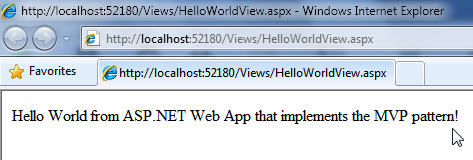
When the presenter first loads it’ll call its view method HelloWorld().

This is the output you get when you run the web app:

MVP Web App Castle Project - Hello World View

Summary
This post shows in a short and to the point way how you can implement the Model/View/Presenter pattern in your ASP.NET web applications.

Using the Model/View/Presenter pattern you’ll have more control over your code. It allows you to decouple responsibilities in your project in such way that you can delegate responsibilities to the right object in a clear fashion.

You keep the files that compose your solution in a folder structure that allows for fast maintenance and organization.

If you want to learn more about the subject discussed in this post, I advise you to read Wikipedia’s articles listed in the References section below.

Hope you make good use of it!

Notes
Although I do not present in this post the Model part of MVP, it’s straightforward to implement it. You’d have a new folder called Model in your project where you’d put the files related to your data model. You could employ LINQ to SQL to represent your model. Again you could use abstraction defining a base repository forcing repository classes to implement the base default methods.

You may have heard about the Model-View-Controller (MVC) pattern. MVP is in contrast with MVC. If you want to know the slight differences between these two patterns take a look at this excellent discussion on StackOverflow titled: What are MVP and MVC and what is the difference?

Visual Studio 2008 C# ASP.NET Web Application
You can get the Microsoft Visual Studio Project at:

http://sites.google.com/site/leniel/blog/MvpWebAppCastleProject.zip

To try out the code you can use the free Microsoft Visual Web Developer 2008 Express Edition that you can get at: http://www.microsoft.com/express/vwd/Default.aspx

References
Castle Project
http://www.castleproject.org/container/index.html

Windsor and MicroKernel documentation
http://www.castleproject.org/container/documentation/index.html

Architectural pattern
http://en.wikipedia.org/wiki/Architectural_pattern

Model View Presenter (MVP) article on Wikipedia
http://en.wikipedia.org/wiki/Model_View_Presenter

Model View Controller (MVC) article on Wikipedia
http://en.wikipedia.org/wiki/Model_View_Controller

Inversion of Control (IoC) article on Wikipedia
http://en.wikipedia.org/wiki/Inversion_of_control

Abstract Type article on Wikipedia
http://en.wikipedia.org/wiki/Abstract_type

Generic Programming article on Wikipedia
http://en.wikipedia.org/wiki/Generic_programming

Method overriding article on Wikipedia
http://en.wikipedia.org/wiki/Method_overriding

Interface article on Wikipedia
http://en.wikipedia.org/wiki/Interface_Computer_Science

Delegation pattern article on Wikipedia
http://en.wikipedia.org/wiki/Delegation_pattern