Import/Export SQL Server database data with SSMS

This post is a visual guide about one of the most powerful features of Microsoft SQL Server Management Studio (SSMS) 2008: Import/Export database data.

These tasks are useful for example when you need to debug an application with real world/production data to find possible bugs in your code. You can import the production database data to your local development database and find what’s causing problems. These tasks can be used to create a protection layer because you won’t be working “directly” with production data.

As you see, if I right click a database in SSMS I get access to this rich menu full of interesting options that deserve a careful study:
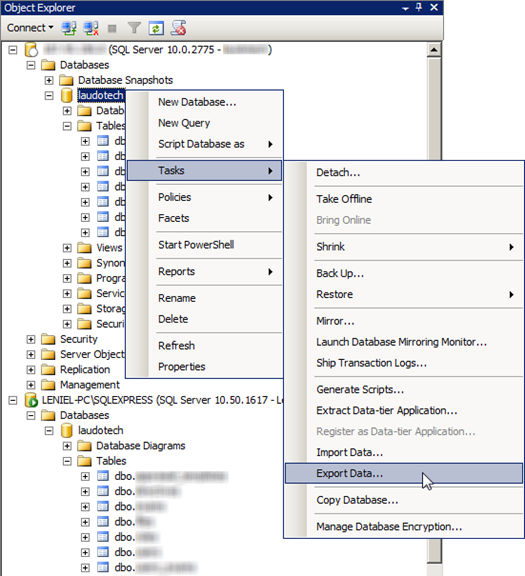
SSMS 2008 Import Export Database Tasks

Looking at the above picture you see in Object Explorer that I’m connected to two SQL database servers. The first one is a remote SQL Server (version 10.0.2775) and the other one is my local SQL Server Express (version 10.50.1617) instance.

With this configuration I have the perfect scenario to visually show you how the Import/Export Data… menu options work.

In this blog post I’ll execute the Export Data task. This allows me to test my web application using my local SQL Server instance with real world/production data.
The Import Data… task does practically the same thing but in reverse, logically. I’ll let the execution of the Import task to you dear reader!

OK… If I proceed and select the Export Data… menu option I’ll be able to bring new data to the database that is located on my machine. Data comes from the remote/production server to my local copy of the same database.

After clicking Export Data…, SQL Server Import and Export Wizard pops up. I then select the Data source/Server name (from which Data source type and Server I want to get the data to be imported). In this case, the data comes from the remote SQL server. I use SQL Server Authentication, fill the user name and password and select the Database that’ll provide the data. In Server name field I used the IP address of my remote server.

SQL Server Import and Export Wizard - Choose a Data Source

Now is the time to choose the Destination. In this case it’s my local SQL Server instance. LENIEL-PC is my Windows 7 machine name. SQLEXPRESS is the default SQL Express server name. I also selected the Database I want to receive the imported data. As you see both databases (source and destination) have the same name to make things easy.

SQL Server Import and Export Wizard - Choose a Destination

The wizard then asks if I want to copy data directly from table to table or if I want to write a custom SQL query to shape the data according to specific needs. I’ll select the first option to keep things simple.

SQL Server Import and Export Wizard - Specify Table Copy or Query

In the next screen we get a beautiful list of available tables and views. I’ve selected two tables that I want to copy.

SQL Server Import and Export Wizard - Select Source Table and Views

If you click the Edit Mappings… button (which applies to each table selected in the grid), I can also specify if I want to delete rows before importing data or if I want to append rows to the destination table. I’ll append rows because I have already erased both tables (exams and files) on my local database.

Apontando para cima Table files is linked to table exams through a foreign key. I disabled this foreign key constraint in my local database to avoid conflicts/errors during the import process. Beware because conflicts do appear most of the time. Conflicts are generally related to key violation/duplication.

SQL Server Import and Export Wizard - Column Mappings

As I’m using the free SQL Server Express Edition, the following screen has an interesting information:

In SQL Server Express, Web, or Workgroup, you can run the package that the Import and Export Wizard creates, but cannot save it. To save packages that the wizard creates, you must upgrade to SQL Server Standard, Enterprise, Developer or Evaluation.

This is telling me that I’ll have to go over the wizard (#7 steps) again if I happen to execute this very import process. Really annoying… Irritado … but that’s the price you must pay when using free tools.

SQL Server Import and Export Wizard - Run Package

Next button once more (the last one hallelujah) and we’re ready to go. It’s just a matter of reviewing what’ll be done and pressing the finish button.

SQL Server Import and Export Wizard - Complete the Wizard

After clicking Finish I got this last window:

SQL Server Import and Export Wizard - Execution Successful

Hope this simple and visual guide helps you understand how the data Import and Export processes work when dealing with a SQL Server database inside SSMS.

Free tools
Microsoft SQL Server Express Edition
Microsoft SQL Server 2008 Management Studio Express (SSMSE)

Sistema para Gerenciamento de Academia de Ginástica

Esta é uma aplicação web que nasceu através de uma parceria entre mim (o único desenvolvedor) e o proprietário de uma academia de ginástica ( a qual eu frequento ). O sistema está em uso e o proprietário/usuário está muito satisfeito.

A aplicação valoriza a simplicidade e é super fácil de usar.

A figura a seguir mostra a home page de onde o usuário pode acessar as funcionalidades da aplicação. Clique nela para ver uma versão ampliada...

Página inicial da aplicação Fitness Center

A aplicação é composta por 5 módulos e possui Controle de Acesso baseado em cargos (Administrador, Professor, Usuário, etc).

Módulos
- Alunos
- Anamneses
- Medidas
- Pagamentos
- Relatórios ( baseados em gráficos e listas )

O sistema está disponível em Português do Brasil (pt-BR) e Inglês (en-US). Ele tem tudo pronto para o caso em que exista a necessidades de localizações adicionais. É completamente viável ter a aplicação em execução em qualquer outra cultura/idioma com pouco trabalho.

Estilos/cores/formatação e logotipo podem ser personalizados usando (CSS).

Tecnologias
A aplicação usa o estado da arte das tecnologias da pilha Microsoft, bem como bibliotecas de código aberto:

C#, .NET Framework 4, ASP.NET MVC 3, SQL Server Compact 4.1, CSS, jQuery 1.5.2, jQuery UI 1.8.12, jQuery Globalization 1.0, jQuery qTip2, modernizr 1.7, Microsoft MVC Ajax, Microsoft Chart Controls for. NET 4, WebGrid, Chirpy

Telas
Você pode ver screenshots da aplicação aqui.

Descrição
As seções subsequentes descrevem cada módulo e as ações que o usuário tem permissão para executar.

A lógica de negócios também é descrita ao longo do caminho se eu ver que ela se encaixa na descrição do módulo.

Não é minha intenção descrever cada regra de negócio da aplicação neste post. Este post é uma visão geral.

Alunos
Ações: Criar, Editar, Detalhes, Excluir
Este módulo trata de dados básicos do aluno como foto, nome e sobrenome, data de nascimento, endereço, sexo, telefone, e-mail, etc. 
Tudo no sistema está relacionado ao aluno. Isto significa que se um aluno é excluído, os dados de cada módulo que fazem referência aquele aluno também serão excluídos.
Alunos que estão em débito são destacados em vermelho na lista/grid de alunos.
Se o nome de um aluno é clicado na lista de alunos, o sistema leva o usuário à lista de pagamentos do respectivo aluno.

Anamneses
Ações: Criar, Editar, Detalhes, Excluir
Este módulo manipula as informações básicas sobre o histórico de saúde do aluno, tais como se o aluno é hipertenso, diabético, fumante, etc. Diferentes tipos de doenças também podem ser selecionados. Estas doenças são agrupadas em categorias, tais como doenças dos ossos e articulações, respiratórias e doenças da tireoide. O estilo da atividade física na qual um aluno se encaixa quando ele se matricula na academia também pode ser selecionado.

Medidas
Ações: Criar, Editar, Detalhes, Excluir
Este módulo trata das medidas das circunferências do corpo do aluno. Estas são as medidas que o sistema controla:
- Altura (m)
- Peso (kg)
- Gordura (%) 
- Pescoço (m)
- Tórax (m)
- Glúteos (m)
- Ombro (m)
- Abdome (m)
- Cintura (m)
- Braço Esquerdo (m)
- Braço Direito (m)
- Coxa Esquerda (m)
- Coxa direita (m)
- Panturrilha Esquerda (m)
- Panturrilha Direita (m)

O usuário é notificado através da lista de medidas se é hora de tomar novas medidas de um aluno. O intervalo de tempo entre as avaliações (medidas) pode ser configurado no sistema. Atualmente está definido como um intervalo de três meses.
A % de Gordura é calculada pelo sistema através de uma fórmula padrão (ver link). Se o usuário passar o mouse sobre o cabeçalho da coluna (%) Gordura na listagem de medidas ele verá uma tabela com valores padrão para % de gordura que inclui Essencial, Atleta, Fitness, Média e Obeso.

Pagamentos
Ações: Criar, Editar, Detalhes, Excluir
Este módulo é o coração do sistema, uma vez que lida com o que podemos chamar de a Raison d'être (razão de ser) de um sistema como este.
O sistema permite a criação de pagamentos para um determinado aluno.
O usuário define um valor de desconto (se necessário) e o campo total é calculado automaticamente. Depois disso uma data de pagamento deve ser selecionada. Há também um campo de observação no qual o usuário pode anotar alguma coisa importante relacionada ao pagamento.
O usuário sinaliza que o pagamento foi realizado marcando o campo pago.
Sempre que um pagamento é marcado como pago, o sistema gera um novo pagamento automaticamente (cópia do pagamento feito) para o mesmo aluno com a data de vencimento 1 mês à frente.

Relatórios
Este módulo gera 4 tipos de relatórios. São eles:

- Total de Pagamentos (gráfico)
O usuário seleciona uma data de início e uma data de fim para gerar um gráfico de colunas que agrupa os pagamentos por mês.

- Pagamentos em Atraso/Vencidos (grid/lista) 
O sistema gera automaticamente um relatório em formato de lista extraindo os dados dos pagamentos que têm uma data de vencimento inferior a uma data especificada. Por exemplo: pode-se conceder uma margem (em dias) para que o sistema considere que o aluno está em débito - 1 semana, 2 semanas, etc após a data do vencimento do pagamento. Isso pode ser configurado no sistema.

- % Alunos Ativos/Inativos (gráfico)
O sistema gera automaticamente um gráfico em formato de pizza que retrata muito bem essa informação.

- Medidas ao Longo do Tempo (gráfico)
O usuário seleciona um aluno e uma data de início e fim para gerar um belo gráfico de linhas que mostra o aumento/diminuição das medidas ao longo do tempo.

Por que comprar?
O principal benefício é que você terá um ponto central para gerenciar sua Academia de Ginástica. A partir dele você pode extrair informações valiosas dos dados. Isto te permite estar sempre um passo à frente para planejar seu próximo passo. Não haverá mais anotações em cadernos e com isso você deixará de perder dados importantes!

Instalação
A aplicação é um arquivo .zip (arquivo compactado) e possui todo o que é necessário para ser executada em um servidor web que tenha o .NET Framework 4 instalado.

Se precisar de ajuda adicional no que diz respeito à hospedagem web/instalação e configuração, eu também posso fazer isso por você. É só me avisar.

Há também a possibilidade de executar a aplicação em um servidor web local usando Microsoft WebMatrix por exemplo. É assim que instalei o sistema no computador do usuário. Fazendo dessa forma você não terá que pagar um provedor de hospedagem on-line. A única desvantagem neste caso é que você não será capaz de acessar a aplicação a partir de qualquer lugar.

Como comprar?
Basta clicar no botão abaixo para comprar esta app barata ( somente R$ 1.200,00 ) através do PayPal:


Depois de clicar no botão acima e concluir o processo de pagamento, escreva para mim e me informe sobre sua compra. Poderei, então, dar prosseguimento no processo de negociação entregando para você a aplicação através de e-mail. A aplicação está contida em um arquivo .zip pequeno ~4MB.

Software é um campo muito interessante porque você trabalha muito para construir uma aplicação, digamos meses, e o produto é apenas um pacote de alguns megabytes. Vai entender…

Direitos autorais
Este produto de software é protegido por direitos autorais.

Você pode ler a EULA aqui (em construção).

Suporte
Ficarei mais do que feliz em fornecer qualquer informação adicional que você precise para que a aplicação seja instalada e funcione em seu servidor.

Se você encontrar algum bug na aplicação eu prontamente irei corrigi-lo e disponibilizarei a aplicação atualizada para você.

Recursos adicionais
Se você precisar de qualquer outro recurso, seja ele um novo módulo ou relatório que não faz parte desta aplicação, apenas me informe e o considerarei para uma versão futura.

Software to automate website screenshot capture

I needed a software that allowed me to capture screenshots of a web application I developed. The software should do it automatically (batch capture). This way it’d save me a lot of time.

How do I used to do that?
I visited each web page I wanted to take a screenshot. It took me about 1 hour to finish the work.

I posted a question at Super User as always: Software to automate website screenshot capture and got an answer suggesting that I use a combination of a URL fetcher + Selenium capability to take screenshots.

Well, I tried Selenium (.NET bindings selenium-dotnet-2.0rc3.zip ) to test its screenshot capture feature but it doesn’t seem to fit the job because it doesn’t allow you to configure screenshot properties as size (height x width). Moreover it doesn’t work well with Ajax (requires you to write a lot of code to check for the existence of Ajax calls, etc). This kills a screenshot that needs everything in place (I mean every DOM object should be part of the screenshot). I tried the 3 drivers available: Internet Explorer, Firefox and Chrome. Screenshots taken with Internet Explorer driver were close to what I expected.

This is a sample code I used based on the code taken from here:

using System;
using System.Drawing.Imaging;
using System.Text;
using NUnit.Framework;
using OpenQA.Selenium;
using OpenQA.Selenium.Chrome;
using OpenQA.Selenium.Firefox;
using OpenQA.Selenium.IE;
using OpenQA.Selenium.Support.UI;

namespace SeleniumTest
{
    [TestFixture]
    public class SeleniumExample
    {
        private FirefoxDriver firefoxDriver;
    
        #region Setup

        [SetUp]
        public void Setup()
        {
            firefoxDriver = new FirefoxDriver();
        }

        #endregion

        #region Tests

        [Test]
        public void DisplayReport()
        {
            // Navigate
            firefoxDriver.Navigate().GoToUrl("http://localhost/FitnessCenter/Report/TotalPaymentsByPeriod");

            IWebElement startDate = firefoxDriver.FindElement(By.Name("StartDate"));
            
            startDate.Clear();
            startDate.SendKeys("January 2011");

            IWebElement generate = firefoxDriver.FindElement(By.Id("Generate"));
            generate.Click();

            var wait = new WebDriverWait(firefoxDriver, TimeSpan.FromSeconds(5));
            wait.Until(driver => driver.FindElement(By.Id("Map")));

            SaveScreenShot(firefoxDriver.Title);
        }

        /// <summary>
        /// Saves a screenshot of the current error page
        /// </summary>
        public void SaveScreenShot(string fileName)
        {
            // Get the screenshot
            Screenshot screenshot = firefoxDriver.GetScreenshot();

            // Build up our filename
            StringBuilder filename = new StringBuilder(fileName);
            filename.Append("-");
            filename.Append(DateTime.Now.ToString("yyyy-MM-dd HH_mm_ss"));
            filename.Append(".png");

            // Save the image
            screenshot.SaveAsFile(filename.ToString(), ImageFormat.Png);
        }

        #endregion

        #region TearDown

        [TearDown]
        public void FixtureTearDown()
        {
            if (firefoxDriver != null) firefoxDriver.Close();
        }

        #endregion
    }
}

Indeed, Selenium is powerful for what it does, that is, helping you automate browser interactions while you test your code. It even allows you to take a screenshot let’s say when something goes wrong (a test fail for example). That’s great and that’s what it does best. It’s a choice for every operating system since it’s an API that can be programmed against.

Paparazzi! beautiful application iconWhat I needed was something more specialized to take screenshots. A software that allows me to configure screenshot properties. The good news is that I managed to find such piece of software and it’s called Paparazzi! - a very suggestive name by the way. One drawback is that it’s only available for Mac OS. As one would expect, it uses Safari browser engine behind the curtains to capture the screenshots. Paparazzi! has minor bugs but it gets the job done. It doesn’t have documentation. I had a hard time trying to make it work. It has batch capture capability but no docs explaining how to do it. So I hope this post will shed some light…

The following lines describe what I did to achieve my objective with Paparazzi!:

1 - Created a list of URLs I’d like to take screenshots of. Like this (one URL per line):

http://192.168.1.106/FitnessCenter/Account/ChangeCulture?lang=en&returnUrl=%2FFitnessCenter%2F
http://192.168.1.106/FitnessCenter/Student
http://192.168.1.106/FitnessCenter/Student/Create
http://192.168.1.106/FitnessCenter/Student/Edit/79
http://192.168.1.106/FitnessCenter/Student/Details/79
http://192.168.1.106/FitnessCenter/Student/Delete/79
http://192.168.1.106/FitnessCenter/Anamnesis
http://192.168.1.106/FitnessCenter/Anamnesis/Create
http://192.168.1.106/FitnessCenter/Anamnesis/Edit/79
http://192.168.1.106/FitnessCenter/Anamnesis/Details/79

.
.
.

2 - Open Paparazzi! and click the Window menu => Batch capture (really difficult to find this option Disappointed smile ):

Paparazzi! difficult to find Batch Capture menu optionPicture 1 - Paparazzi! difficult to find Batch Capture menu option

3 - Drag and drop a text file .txt (the file that contains the URLs) to the Batch Capture window:

Paparazzi! Batch Capture window surfacePicture 2 - Paparazzi! Batch Capture window surface

Here is where I think I found a limitation and it’s by design. This should definitely not happen IMHO. If you try to add a file clicking on ( + button), Paparazzi won’t let you select a text file. The only way I got it working was selecting the .txt file and then drag and dropping the file to the Batch Capture window.

4 - Configure screenshot properties by clicking the list button (see mouse cursor above it):

Paparazzi! screenshot process basic configurationsPicture 3 - Paparazzi! screenshot process basic configurations

You can define the screenshot size. There are pre-defined values for standard screen resolutions. It allows you to define new presets.

You can also delay the capture to wait the page finish loading, etc.

There are a set of configurations available related to the batch capture functionality. To access these configurations, go to Paparazzi! menu and select Preferences:

Paparazzi! Preferences… menu optionPicture 4 - Paparazzi! Preferences… menu option

The first configuration worth mentioning the Default Filename Format available in the General section:

Paparazzi! General preferences sectionPicture 5 - Paparazzi! General preferences section

Above I’m defining this format:

%t = page title
%Y = year
%m = month
%d = day
%H = hour
%M = minute
%S = second

The example in the picture is pretty clear… Smile

Another set of configurations is available in the Batch capture section:

Paparazzi! Batch Capture preferences sectionPicture 6 - Paparazzi! Batch Capture preferences section

Here you can choose where to save the screenshots as well as the type of the images.

After configuring the batch capture session, it’s the gran finale time...

5 - Click the Play button, go take a coffee and relax while the computer does the job for you Fingers crossed.

Paparazzi! Batch Capture in actionPicture 7 - Paparazzi! Batch Capture in action

Hope you have found this post interesting and that it’s useful to help in documenting a little bit of this small but really powerful application.

Pointing up Now I get all the screenshots in less than 1 minute!

References
Paparazzi!
http://derailer.org/paparazzi/