Showcase StackOverflow flair/badge in LinkedIn profile

Today I just thought about showcasing/displaying my StackOverflow flair/badge in my LinkedIn profile. LinkedIn is a good place to show it because it’s a perfect match between your reputation as a software guy and possible good opportunities.

Since LinkedIn doesn’t allow one to put html code snippets in profile fields this showed to be a difficult task at first. Nothing that a little bit more thinking couldn’t solve: Google presentation application to the rescue.

Well, basically what you have to do is create a simple online Google Docs presentation. You could also create an Office PowerPoint presentation and upload it. For sure it’ll give you a lot more customization options. I’ve chosen Google presentation because it suffices my needs for the moment.

Inside that presentation you’ll put an image object that points to your StackOverflow flair image URL. Mine is this one:

http://stackoverflow.com/users/flair/114029.png?theme=dark

Just substitute my StackOverflow user id highlighted above by yours to get your flair.

To change the theme, add ?theme=clean or ?theme=dark or ?theme=hotdog to the end of the image URL.

This URL will render a picture that represents your flair this way:

StackOverflow flair/badge

The bad point in this approach is that as your reputation grows your presentation won’t show your updated flair. You’ll have to open the presentation and re-add the flair image to reflect your current SO reputation.

Google should give us a way to have dynamic content inside a presentation (its spreadsheet service allows this kind of content). This is something that is really missing in presentations. Hey Google, can you hear me?

To give a more personal touch to your presentation you can also put a background image in your slide. I selected a Lamborghini Gallardo because it’s my main car in GT 5 today. So it represents my mood right now. One day I’ll have this car. Just kidding. :)

This is the final result:

This post provides an answer to this Meta StackOverlfow question:

IS it possible to show SO flair on LinkedIn?

Software to add Lyrics to MP3 files ID3 metadata

Take a look at the MP3 series. Probably you’ll find something interesting.

If you're like me, you also like to take a look at the lyrics of music that is currently playing in your computer or mobile device as the iPhone. I do it to learn a bit more of English since its not my main language and of course because I also want to sing along correctly. :)

The iPhone for example allows you to read the lyrics of the current song if the lyrics are present in the MP3 ID3 metadata container. This is pretty cool. If you already have lyrics embedded in your MP3 files you can see them while in a bus trip, waiting for a service, etc.

Every MP3 has a specific field (also know as frame) in its metadata to store lyrics information. It’s just a matter of filling this field with the correct lyrics. This is a hard work to do manually because you have to search for the lyrics and then copy/paste it in the right field. This sounds like a great thing to be done by software instead. Again, that’s what computers are for… save us time.

In iTunes (the media player/library software I use) for example, one would right-click a music file and then select the Get Info context menu option. Then you’d select the Lyrics tab and paste the lyrics in the white huge field making sure to click OK as seen in Figure 1 below:

Adding lyrics to an iTunes music file through the Lyrics tab
Figure 1 - Adding lyrics to an iTunes music file through the Lyrics tab

Some time ago I asked a question at SuperUser site: Software to add Lyrics to MP3 files ID3 metadata. It seems that there are a lot of people (3,356 to be precise as the time of this post) out there looking to accomplish what this post tries to clarify.

When I asked the question I was using Windows and I got good answers.

I also discovered other software by myself as MiniLyrics for Windows at that time. If you’re interested in MiniLyrics, here goes a small tutorial to save the lyrics to MP3 metadata!

MiniLyrics
Right click MiniLyrics icon in the system tray, choose Preferences and then select the Lyrics icon. Under the Save downloaded lyrics in: - select Save lyrics in mp3 file.

Other great feature MiniLyrics has is that while the music is playing the lyrics can be shown on your screen according to what is being sung, that is, the lyrics flows in your screen according to the music timing. Fantastic job from crintsoft people... :)

Besides saving the lyrics to MP3 metadata, there are lots of features and possibilities when it comes to lyrics in MiniLyrics software.

From the official site:

    MiniLyrics Display lyrics for your favorite music!

        * Lyrics plugin software for iTunes, Windows Media Player, MediaMonkey, Winamp, etc. You do not need to change the way you enjoy music.
        * Display scrolling lyrics, you can follow along with the artist and catch every word.
        * Automatically search and download lyrics.
        * Huge lyrics database, and it is expanding everyday.
        * Free Trial version that never expires.

Lyricator
Lyricator as suggested by merv is a fantastic/great/cool piece of software to go with MediaMonkey but it is having some problems currently as you can find in this thread.

I had to resort to other service while Lyricator is being repaired. I found other free software that does the job, but only on a Mac computer (that’s OK because I’ve switched to the Mac world). It's name is Get Lyrical.

Get Lyrical

Get Lyrical doing its job in the background
Figure 2 - Get Lyrical doing its job in the background

    Get Lyrical auto-magically add lyrics to songs in iTunes!

You can choose either a selection of tracks, or the current track. Or turn on "Active Tagging" to get lyrics for songs as you play them.

    You can also browse and edit the lyrics of your iTunes tracks right from Get Lyrical.

I highlighted in yellow above a powerful feature of Get Lyrical. You can even add lyrics to a selection of tracks at once. This is a batch processing feature really welcome when you want to add lyrics to an artist’s complete discography for example.

I’ve been using Get Lyrical for some time now and it is really competent in the job. I highly recommend it.

Installing PHP on Mac OS X Snow Leopard 10.6.5

Motivated by this question at StackOverflow: RegExp PHP get text between multiple span tags, I decided to help.

Recently I got a Mac mini. I still hadn’t played with PHP on Mac and to debug my answer to that question I needed a way to test the code. So I thought: why not also give PHP a try on Mac OS since its my main OS today? Oh, good idea, go learn something new… :D

The first thing I did obviously was recurring to Google and searching for something that could help me get there.

I hit a pretty good tutorial to enable PHP on Mac at About.com written by Angela Bradley that gets to the point: How to Install PHP on a Mac. Along the way I had to solve only one minor thing described in the caveat section at the end of this post.

You see that the title of this post has the word installing (well I thought I had to install it – that was my first reaction), but in fact it could be the word enabling because PHP is an integral part of Mac OS X Snow Leopard and we just need to enable it as you’ll see soon.

Here we go. Follow these steps:

1 - Enabling the Web Server
PHP works hand in hand with a webserver. Mac OS already comes with Apache web server and so we just need to enable it. To do so, open System Preferences in the Dock. Then click the 'Sharing' icon in the Internet & Network section. Check the ‘Web Sharing’ box.

Web Sharing option under the Sharing configuration in System Preferences
Figure 1 - Web Sharing option under the Sharing configuration in System Preferences

Now type this address in your browser: http://localhost/. You should get a message that reads: It works!

2 - Enabling PHP
PHP also comes bundled in Mac OS, but it’s disabled by default. To enable it we need to edit a hidden system file located in this path: /private/etc/apache2/httpd.conf.

I used BBEdit text editor to edit such a file (note that I marked the box Show hidden items in the screenshot below):

Editing a hidden file with BBEdit
Figure 2 - Editing the hidden system file httpd.conf with BBEdit

Now within that file search for:

libexec/apache2/libphp5.so

Delete the character # in the start of the line so that that entire line should now read:

LoadModule php5_module          libexec/apache2/libphp5.so

Save the file.

3 - Testing the installation
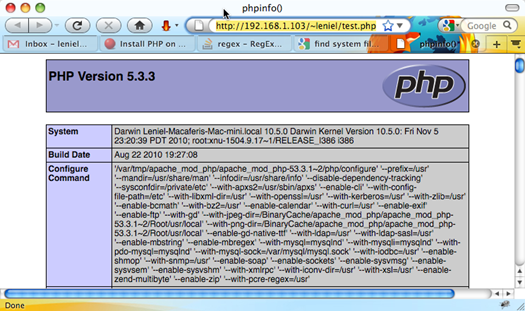
There’s nothing better to test the PHP installation than using its own information. To accomplish this, write a one liner simple .php file named test.php with this content:

<?php phpinfo() ?>

Place this file inside your personal website folder. Mine is located in this path:

/Users/leniel/Sites/test.php

Now let’s test this page by typing its address in the browser:

http://192.168.1.103/~leniel/test.php

As you see, the address points to my personal website as seen in Figure 1.

When you run this simple .php page you should get something like this:

Testing PHP installation with its own configuration’s information
Figure 3 - Testing PHP installation with its own configuration’s information

If your PHP installation is OK, the test page will display PHP's information. If it displays the page code, you need to restart the Apache server.

You can restart Apache by entering the following in Terminal:

sudo apachectl restart

Try to reload the page again. Everything should work.

Well done!. Now you can play with PHP on your Mac computer and write some neat codez. :)

Caveat
When I tried to restart Apache server I got the following error:

ulimit: open files: cannot modify limit: Invalid argument

I resorted to this solution: Mac OS X 10.6.5 broke my apachectl