Fitness Center management software ( web app )

Fitness Center Management System/Web Application
This is a web application that was born in a partnership between me (the only developer) and the owner of a Fitness Center that I happen to be a frequenter/student. It’s currently being used there and he (the owner/user) is really satisfied with it.

The application values simplicity and is super easy to use.

The following screenshot shows the home page from where the user can access the application functionalities. Click it to see a larger version…

Fitness Center Management System Home page

The app comprises 5 modules and has access control based on Roles (Administrator, User, etc).

Modules
- Students
- Anamneses
- Measurements
- Payments
- Reports (chart and grid based reports)

It’s available in Portuguese from Brazil (pt-BR) and English (en-US). It has everything in place in case of additional localization needs. It’s completely viable to have the app running in any other culture/language with little work.

Application styles/colors and logo can be customized using cascading style sheet (CSS).

Technologies
The app uses state of the art technologies from Microsoft stack as well as open source libraries:
C#, .NET Framework 4, ASP.NET MVC 3, SQL Server Compact 4.1, CSS, jQuery 1.5.2, jQuery UI 1.8.12, jQuery Globalization 1.0, jQuery qTip2, modernizr 1.7, Microsoft MVC Ajax, Microsoft Chart Controls for .NET 4, WebGrid, Chirpy

Screenshots
You can see screenshots of the application here.

Description
The subsequent sections describe each module and the actions the user is allowed to perform. Business logic is also described along the way if I see it fits. It’s not my intention to describe every business rule of the application in this post. It’s just an overview.

Students
Actions: Create, Edit, Details, Delete
This module handles basic student data as photo, first and last names, birth date, address, gender, phone, email, etc. 
Everything in the system is related to Student. This means that if a Student is deleted, every other module's data is deleted as well.
Students that are in debt are highlighted in red in the Students list/grid.
If the name of a Student is clicked in the list, the system takes the user to the Payments list of that respective Student.

Anamneses
Actions: Create, Edit, Details, Delete
This module handles basic information about the Student health history such as if the student is hypertense, diabetic, smoker, etc. Different types of diseases can also be selected. These diseases are grouped in categories such as Bones and Joints, Respiratory and Thyroid diseases. The style of physical activity a student currently fits in when he/she joins the Fitness Center can also be selected.

Measurements
Actions: Create, Edit, Details, Delete
This module handles measurements of a Student's body circumferences. These are the measurements the system keeps track:
- Height (m)
- Weight (kg)
- Fat (%)
- Neck (m)
- Thorax (m)
- Buttocks (m)
- Shoulder (m)
- Abdomen (m)
- Waist (m)
- Left Arm (m)
- Right Arm (m)
- Left Thigh (m)
- Right Thigh (m)
- Left Calf (m)
- Right Calf (m)

The user is notified through the measurements list if it's time to take new measurements for a Student. The time interval between measurements can be configured in the system. Currently this is set as a 3 month interval.
Fat (%) is calculated by the system. If the user hovers his mouse over the Fat (%) table header he/she can see a table with standard Fat (%) values that include Essential, Athletes, Fitness, Average and Obese.

Payments
Actions: Create, Edit, Details, Delete
This module is the heart of the system since it handles what we can call the Raison d'ĂȘtre of a system like this.
The system allows the creation of payments for a given Student. The user defines a value, discount (if necessary) and the Total field is automatically calculated. After that a Due date must be selected. There’s also an observation field in which the user can annotate anything important related to that payment. The user signals that a payment was made by checking the Paid field.
Whenever a payment is marked paid, the system automatically generates a new payment (copy of the payment being made) for that same Student with a due date 1 month ahead.

Reports
This module generates 4 types of reports. They are:

- Total Payments ( chart )
The user selects a Start and End date to generate a column chart that groups the payments by month.

- Overdue Payments ( grid/listing ) 
The system automatically generates a grid/listing report extracting data for payments that have a due date less than a specified date. This can be configured in the system.

- % of Active/Inactive Students ( chart )
The system automatically generates a pie chart that depicts very well this information.

- Measurements Over Time ( chart )
The user selects a Student and a Start and End date to generate a beautiful line chart that shows measurements increase/decrease over time.

Why to buy?
I think the main benefit is that you’ll have a centralized point to manage your Fitness Center. From this you can extract valued information from data and be always one step ahead to plan your next endeavor. No more notebook entries and missing important data!

Installation
The app is self-contained in a .zip file that has everything it needs to run on a webserver that has the .NET Framework 4 installed.

If you need additional assistance regarding installation/web server hosting and configuration, I can also do that for you. Just let me know.

There's also the possibility of running the app in a local webserver by using Microsoft WebMatrix for example. This is how I installed it in the user's computer. Doing this way you won't need to pay an online hosting provider. The only downside here is that you won't be able to access the app on the go.

How to buy?
Just click the following button to buy this cheap app ( only $ 600.00 ) through PayPal:

After clicking the button above and completing the payment process, write to me and let me know about the purchase. I can then go further in the negotiation process and handle you the app through e-mail since it’s a small .zip package ~4MB.

Software is a really interesting field because you put a lot of work to construct it, let’s say months and the product is just a package of only a few megabytes. Go figure.

Support
I'll be more than happy in providing any further information you need to get the app up and running on your server.

If you find any bug in the app I'll promptly correct it and send the patched app to you.

Additional features
If you need any other feature, be it a new module or report that is not part of this app, just let me know and I'll consider it for a future release.

Replacing Web.config settings with Transforms

First off: this is the 100th post I write in this blog. A great amount of shared info… Party smile

Now let’s say you want to point to a different connection string when you deploy your ASP.NET Web Project to your hosting provider. Until recently you’d have to modify your Web.config file manually. This is an easy procedure but you might end screwing up the file in some way.

Visual Studio 2010 comes with a great new feature called Web.config Transformation that allows you to perform transformations in whatever section of your Web.config file. This transformation process happens automatically when you build the deployment package for your application. Transformations occur as part of the MSBuild process. With this it’s easy to change the connection string (or better yet, anything you want) depending on the configuration currently selected when you build the deployment package. No more Web.config manual editing. Thanks God!

This post shows a simple replace transformation in which I replace one of my app settings named Connection.

This is the actual code of my Web.config file:

<appSettings>
<!-- Database connection pointer -->
<add key="Connection" value="MyProject.Web.Settings.local" />
</appSettings>
<connectionStrings>
<
add name="MyProject.Web.Settings.local" connectionString="Server=localhost\sqlexpress;Database=MyDatabase;Integrated Security=True;" providerName="System.Data.SqlClient" />
<
add name="MyProject.Web.Settings.hostingProvider" connectionString="Server=123.45.678.9;Database=MyDatabase;UID=user;PWD=pass123;MultipleActiveResultSets=true;Asynchronous Processing=True;" providerName="System.Data.SqlClient" />
</connectionStrings>

Step 1 - Create a new Configuration named Test:

Visual Studio Configuration Manager (menu Build => Configuration Manager)Figure 1 - Visual Studio Configuration Manager (menu Build => Configuration Manager)

Creating a New ConfigurationFigure 2 - Creating a New Configuration

New Solution Configuration named TestFigure 3 - New Solution Configuration named Test

Step 2 - Right-click your project’s Web.config file and select Add Config Transforms:

Adding Config Transforms for the Web.config fileFigure 4 - Adding Config Transforms for the Web.config file

Now you’ll see that VS creates one Web.config file for each configuration we have defined. Now we have 3 child .config files/transforms. In this case Web.Debug.config and Web.Release.config are related to the standard configurations that are automatically created with new web projects. Web.Test.config is related to the Test configuration we created in Step 1.

Web.config transforms backing filesFigure 5 - Web.config Transforms backing files

Step 3 - Double click Web.Test.config and add this code:

<?xml version="1.0"?>

<!-- For more information on using web.config transformation visit http://go.microsoft.com/fwlink/?LinkId=125889 -->

<configuration xmlns:xdt="http://schemas.microsoft.com/XML-Document-Transform">
    <appSettings>

        <!-- Database connection pointer -->
        <add key="Connection" value="MyProject.Web.Settings.hostingProvider" xdt:Transform="Replace" xdt:Locator="Match(key)" />

    </appSettings>

</configuration>

Above I’m transforming the Web.config file so that when I build my deployment package for the Test configuration I have the Connection appsetting replaced. My Connection appsetting will then point to the hostingProvider connection string. Take a special look in the transform I’m using (Replace) and the Locator to match the key Connection. For a more detailed explanation about the available transforms, read the post Web Deployment: Web.Config Transformation by Vishal Joshi.

Step 4 - Make sure you have selected the Test configuration in Visual Studio. Now Create the deployment package by right-clicking your ASP.NET Web Project and select Build Deployment Package:

ASP.NET Web Project’s Build Deployment Package context menu optionFigure 6 - ASP.NET Web Project’s Build Deployment Package context menu option

When you do this Visual Studio 2010 will generate a package with all the necessary files your app needs to run. My package is created in this path:

C:\MyProject\trunk\MyProject\MyProject.Web\obj\Test\Package

Inside this folder you’ll find a .zip file named MyProject.Web.zip (the package) that you can use to install the app in IIS or you can handle it to the one responsible for actually installing the app on the server.

Note: Visual Studio 2010 comes with other great feature that allows you to Publish this package directly to your hosting provider using Web Deploy, FTP, etc. I’ll cover this in another post…

You’ll also find a folder named PackageTmp. This folder has everything that goes into that .zip package. Open the Web.config file that lies within this folder and see if the transformation was applied correctly. It should’ve been applied.

In my case in my main Web.config file I’m pointing to a local connection string:

<add key="Connection" value="MyProject.Web.Settings.local" />

This makes sense since I’m working in my home machine. The transformation I'm applying should transform/replace the Connection appsetting when I build the deployment package for the Test configuration. Now the appsetting must point to the hosting provider connection string like this:

<add key="Connection" value="MyProject.Web.Settings.hostingProvider" />

Hope this simple sample helps shed some light in this really powerful and interesting feature that comes with Visual Studio 2010.

Note: if you wanna get direct access to the original and transformed Web.config files, check these folders:

C:\MyProject\trunk\MyProject\MyProject.Web\obj\Test\TransformWebConfig\original

C:\MyProject\trunk\MyProject\MyProject.Web\obj\Test\TransformWebConfig\transformed

Test transforms online
http://webconfigtransformationtester.apphb.com/

Productivity and happiness going from 4 to 8 GB RAM

This post tries to illustrate the productivity improvements you get when you go from 4 GB to 8 GB RAM.

I bought a Mac mini last year and when I started using it to do software development, data started to be processed very very slow… I ordered mini with “just” 4 GB RAM. My assumption that I’d develop only Mac software wasn’t true because now I know that I can’t live without Windows development. This way I have to use a virtual machine/VM (Windows 7) to install Visual Studio, database servers and everything else. That requires a lot of memory as you may know already.

Situation before and after memory upgrade

Mac OS Win VM Comment Feeling
Before 3 GB 1 GB This is crazy. I know. Necessity rules. Steaming mad
After 4 GB 4GB This is what a software developer needs today. Open-mouthed smile

There’s nothing better than images to illustrate my situation before and after the memory upgrade. Pictures can tell thousands words… Seeing is believing!

Before memory upgrade

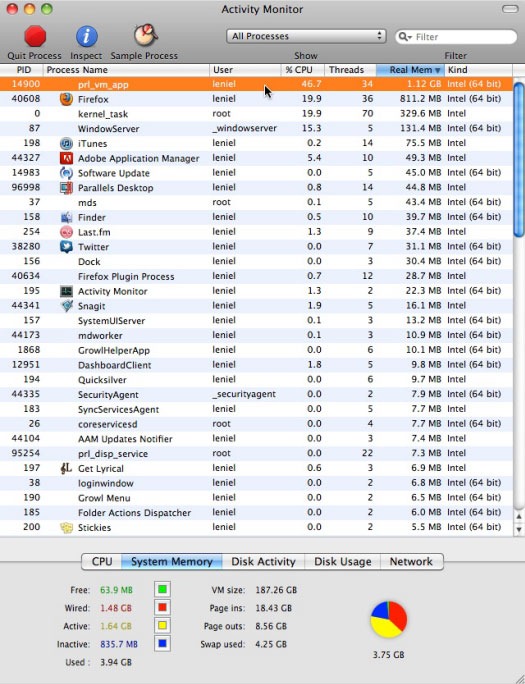
Mac OS Activity Monitor  ( before memory upgrade ) Screenshot 1 - Mac OS Activity Monitor  ( before memory upgrade )

Parallels Desktop with Windows 7 virtual machine - Process Explorer ( before memory upgrade ) Screenshot 2 - Parallels Desktop with Windows 7 virtual machine
Process Explorer ( before memory upgrade )

Parallels Desktop with Windows 7 virtual machine - System Information ( before memory upgrade ) Screenshot 3 - Parallels Desktop with Windows 7 virtual machine
System Information ( before memory upgrade )

After memory upgrade

Mac OS Activity Monitor ( after memory upgrade ) Screenshot 4 - Mac OS Activity Monitor ( after memory upgrade )

Parallels Desktop with Windows 7 virtual machine - Process Explorer ( after memory upgrade ) Screenshot 5 - Parallels Desktop with Windows 7 virtual machine
Process Explorer ( after memory upgrade )

Parallels Desktop with Windows 7 virtual machine - System Information ( after memory upgrade ) Screenshot 6 - Parallels Desktop with Windows 7 virtual machine
System Information ( after memory upgrade )

Analysis and Points to take into account
1 - In both Activity Monitors (Screenshot 1 and Screenshot 4) you can see in the pie chart that the sum of memory (3.75 GB and 7.75 GB) is always 250 MB bellow the total installed memory. This is because Mac mini shares its RAM with the video card.

2 - I do not turn off the computer, that is, I put the computer to Sleep (Mac OS term for what we call Hibernate in Windows). When the computer comes back from sleep its memory isn’t completely empty. These screenshots were taken while the computer was in the process of sleeping/waking for a few days and hence the values of Wired, Active, Inactive memory tend to stay high even after waking the computer.

3 - The number of open apps is for sure different but I can guarantee that I have much more apps open after the upgrade, for example: two Visual Studios (desenv.exe) in Screenshot 5 while I had only 1 VS opened in Screenshot 2. To make it even more clear we just have to compare the Totals section of Win 7 System Information. Before I had 53 processes and after 75 (Screenshot 3 and Screenshot 6). An increase of 41.50%.

4 - Despite the values for Page outs and Swap used, after the upgrade I change screens very very fast. So these values do not scary me anymore.

5 - After upgrading Parallels Desktop 6 to its latest release (Build 6.0.12090 / Revision 660720; May 26, 2011) I noted a better memory management regarding the virtual machine. Now Page outs and Swap used are in MBs as shown in Screenshot 7:

Mac OS Activity Monitor after Parallels Desktop upgradeScreenshot 7 - Mac OS Activity Monitor after Parallels Desktop upgrade

Conclusion
Comparing the data shown above, it’s clear that RAM upgrade plays a big role when it comes to developer productivity and happiness.

Now I can say that I have a responsive computer and that means a lot in my day to day work.

Developer: get 8 GB RAM if you can afford it. It’s the bare minimum in 2011. You’ll be happy. No stress… If you can afford and your hardware supports 16 GB RAM, go for it and you’ll have no RAM headaches for a long long period.

Manager or whoever pays the bill: give a descent computer to your developers with at least 8 GB RAM! No excuses… RAM is so cheap nowadays that I don’t understand how can a lot of developers out there work with less than the necessary amount of RAM.

Note 1: Windows processes and memory information come from Process Explorer by Sysinternals. It’s way better and more powerful than Windows default Task Manager.

Note 2: To better understand memory information in Mac OS, refer to this article by Apple: Mac OS X: Reading system memory usage in Activity Monitor