Interesting discussion at StackOverflow:
Create Excel (.XLS and .XLSX) file from C#
If you want to see how to combine NPOI + Excel Table and Chart,
take a look at the post titled NPOI with Excel Table and dynamic Chart.
NPOI 2.0 series of posts scheduled
Recently I had to implement some code to create an Excel spreadsheet/report using C#.
The task was: given an Excel spreadsheet template - a .XLS file (with formulas, pivot tables, macros, etc) I had to fill some data in one of the sheets of the spreadsheet and send this modified spreadsheet back to the user requesting such an operation (Excel report).
The following attests the need for Excel nowadays:
Excel has long been recognized as the de facto standard when it comes to presenting management reports. The unique combination of great calculation engine, excellent charting facilities, pivot tables and the possibility to perform “what if” analysis, make it the “must have” business intelligence tool.
by John Tunnicliffe
I had a great time while studying the possible ways of doing what the task asks for.
It appears to be a simple task at first but as the time passes by you get to know that this is not the case, well, till the moment this blog post was written at least, I think. :-)
Firstly I tried automating Excel through COM automation, but as the application was meant to be used in a web context it is not recommended to use automation. Why? Because COM automation for Excel is not thread safe, that is, EXCEL.EXE was not constructed to be used by concurrent users accessing the same process, in this case EXCEL.EXE; besides, Microsoft Excel must be installed on the server what is not always possible.
For more details on why you shouldn’t use Excel on the server, read this article on Microsoft Help and Support site: Considerations for server-side Automation of Office. The key part is this:
Microsoft does not currently recommend, and does not support, Automation of Microsoft Office applications from any unattended, non-interactive client application or component (including ASP, ASP.NET, DCOM, and NT Services), because Office may exhibit unstable behavior and/or deadlock when Office is run in this environment.
I’ve just experienced the above. EXCEL.EXE insisted in being alive in task manager even after processing the data and being closed in code. Each call to process a spreadsheet opens an EXCEL.EXE process on the server. With such EXCEL.EXE processes don’t being closed as they should you get lots of those processes on memory which could overload the server.
Do not use COM automation if you are developing server-side code.

I’ve gotten really happy because I had found a way of doing what the task was asking for but with a minor detail: ExcelPackage works only with .XLSX file format letting the .XLS (Microsoft Excel 2003) format out of the game. Well it turned out to be a big impediment because the client (software buyer) wouldn’t allow us to install the famous Microsoft Office Compatibility Pack for Word, Excel, and PowerPoint 2007 File Formats on user machines so that users could open and save OOXML file formats even using Microsoft Office 2003 suite.
Discovering ExcelPackage was good but it didn’t do the trick that implies the use of an .XLS template.

OK, after this short story, I’ll show you how to use both open source projects (ExcelPackage and NPOI).
I’ve created a new ASP.NET MVC project as can be seen in this picture:
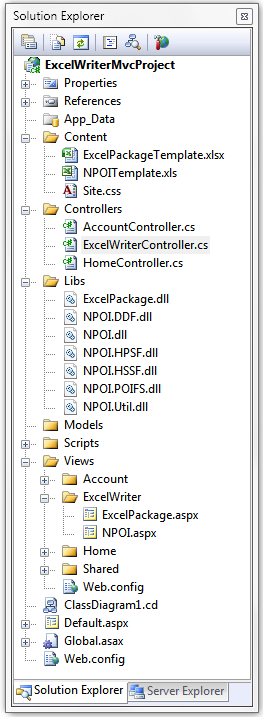
In the Content folder I’ve placed the template spreadsheets.
In the Libs folder I’ve placed the DLLs necessary to use both ExcelPackage and NPOI open source projects.
The controller that interests us is the one called ExcelWriterController:

The methods that handle the creation of the spreadsheet are: ExcelPackageCreate and NPOICreate.
For each controller action (method) there’s a corresponding view that renders the UI to the user. Those views are the ones shown inside the ExcelWriter folder: ExcelPackage.aspx and NPOI.aspx.
This is the Home Page of the Excel Writer MVC Application - take a look at the tabs (ExcelPackage and NPOI) that lead you to the View pages:
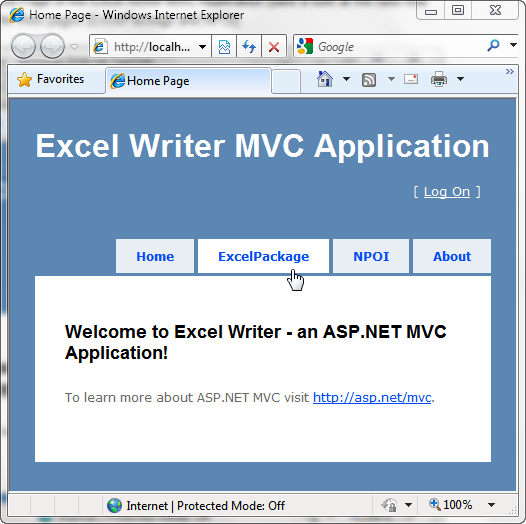
Each view has a button which when clicked calls the corresponding action method on the ExcelWriterController.
This is the NPOI view page:

I’ll play with a simple spreadsheet I filled with the data I got from Excel’s blog post titled Formula to Access a List of Values Interspersed with Zeros or Blanks.
Let’s see the code that goes into the ExcelPackageCreate method:
/// <summary>
/// Creates a new Excel spreadsheet based on a template using the ExcelPackage library.
/// A new file is created on the server based on a template.
/// </summary>
/// <returns>Excel report</returns>
[AcceptVerbs(HttpVerbs.Post)]
public ActionResult ExcelPackageCreate()
{
    try
    {
        FileInfo template = new FileInfo(Server.MapPath(@"\Content\ExcelPackageTemplate.xlsx"));

        FileInfo newFile = new FileInfo(Server.MapPath(@"\Content\ExcelPackageNewFile.xlsx"));

        // Using the template to create the newFile...
        using(ExcelPackage excelPackage = new ExcelPackage(newFile, template))
        {
            // Getting the complete workbook...
            ExcelWorkbook myWorkbook = excelPackage.Workbook;

            // Getting the worksheet by its name...
            ExcelWorksheet myWorksheet = myWorkbook.Worksheets["Sheet1"];

            // Setting the value 77 at row 5 column 1...
            myWorksheet.Cell(5, 1).Value = 77.ToString();

            // Saving the change...
            excelPackage.Save();
        }

        TempData["Message"] = "Excel report created successfully!";

        return RedirectToAction("ExcelPackage");
    }
    catch(Exception ex)
    {
        TempData["Message"] = "Oops! Something went wrong.";

        return RedirectToAction("ExcelPackage");
    }
}
Let’s see the code that goes into the NPOICreate method:
/// <summary>
/// Creates a new Excel spreadsheet based on a template using the NPOI library.
/// The template is changed in memory and a copy of it is sent to
/// the user computer through a file stream.
/// </summary>
/// <returns>Excel report</returns>
[AcceptVerbs(HttpVerbs.Post)]
public ActionResult NPOICreate()
{
    try
    {
        // Opening the Excel template...
        FileStream fs =
            new FileStream(Server.MapPath(@"\Content\NPOITemplate.xls"), FileMode.Open, FileAccess.Read);

        // Getting the complete workbook...
        HSSFWorkbook templateWorkbook = new HSSFWorkbook(fs, true);

        // Getting the worksheet by its name...
        HSSFSheet sheet = templateWorkbook.GetSheet("Sheet1");

        // Getting the row... 0 is the first row.
        HSSFRow dataRow = sheet.GetRow(4);

        // Setting the value 77 at row 5 column 1
        dataRow.GetCell(0).SetCellValue(77);

        // Forcing formula recalculation...
        sheet.ForceFormulaRecalculation = true;

        MemoryStream ms = new MemoryStream();

        // Writing the workbook content to the FileStream...
        templateWorkbook.Write(ms);

        TempData["Message"] = "Excel report created successfully!";

        // Sending the server processed data back to the user computer...
        return File(ms.ToArray(), "application/vnd.ms-excel", "NPOINewFile.xls");
    }
    catch(Exception ex)
    {
        TempData["Message"] = "Oops! Something went wrong.";

        return RedirectToAction("NPOI");
    }
}
One drawback of the ExcelPackage library is that it must create a file on the server. There are some modifications to the library that enables you to create the template copy on memory and send it to the user as the NPOI library does. Take a look at the ExcelPackage’s discussion page at CodePlex and specifically this thread: Why create Excel spreadsheets on the server?
The great thing about NPOI of course is that it enables you to work with the template in code and then send a copy of the spreadsheet directly to the user. The template remains intact and the user receives a modified copy of the template which contains the data processed by the application.
With NPOI when you click on the Create Excel report button you get the download dialog window:
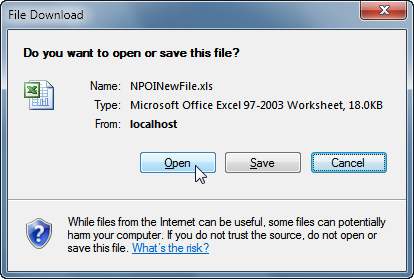
With ExcelPackage you’d have to get the path of the file created on the server, in this case \Content\ExcelPackageNewFile.xlsx and then send that file to the user. This is an extra step and adds an additional burden to the server. I didn’t implement it and so I let this as an exercise to you.
Well, the spreadsheet included in this simple project has only formulas but you can for sure have an Excel template with lots of formulas, pivot tables, macros, etc. This gives you the power of Excel in code in a clean fashion.
Hope this helps shed some light on this topic!
Note
Using the open source libraries presented in this post you won’t need Microsoft Excel installed on the server.
Updated on 9/22/2010
There’s now EPPlus that extends ExcelPackage.
EPPlus is a .net library that reads and writes Excel 2007 files using the Open Office XML format (XLSX).
EPPlus supports ranges, cell styling, charts, pictures, shapes, named ranges, autofilters and a lot of other stuff.
Updated on 6/2/2010
I’m working on an ASP.NET project that uses .NET Framework 1.1. In such a case I needed to use NPOI 1.2.1 for .NET 1.1.
The code you’ll use with NPOI 1.2.1 for .NET 1.1 is the same presented on this post. Just pay attention to include this using directive inside your C# code:
using NPOI.HSSF.UserModel
Updated on 1/3/2010
If you like NPOI, help spread the word about it voting up on this ad:

Visual Studio 2008 C# ASP.NET MVC Web Application
You can get the Microsoft Visual Studio Project at:
http://sites.google.com/site/leniel/blog/ExcelWriterMvcProject.zip
To try out the code you can use the free Microsoft Visual Web Developer 2008 Express Edition that you can get at: http://www.microsoft.com/express/vwd/Default.aspx
References
ExcelPackage: Office Open XML Format file creation
http://excelpackage.codeplex.com/
ExcelPackage binaries download
http://excelpackage.codeplex.com/Release/ProjectReleases.aspx
NPOI
http://npoi.codeplex.com/
NPOI 1.2.1 for .NET 1.1
http://npoi.codeplex.com/Release/ProjectReleases.aspx?ReleaseId=33203
NPOI 1.2.1 for .NET 2.0
http://npoi.codeplex.com/Release/ProjectReleases.aspx?ReleaseId=19351
NPOI samples
http://npoi.codeplex.com/Release/ProjectReleases.aspx?ReleaseId=19351#DownloadId=70100