Installing PHP on Mac OS X Snow Leopard 10.6.5

Motivated by this question at StackOverflow: RegExp PHP get text between multiple span tags, I decided to help.

Recently I got a Mac mini. I still hadn’t played with PHP on Mac and to debug my answer to that question I needed a way to test the code. So I thought: why not also give PHP a try on Mac OS since its my main OS today? Oh, good idea, go learn something new… :D

The first thing I did obviously was recurring to Google and searching for something that could help me get there.

I hit a pretty good tutorial to enable PHP on Mac at About.com written by Angela Bradley that gets to the point: How to Install PHP on a Mac. Along the way I had to solve only one minor thing described in the caveat section at the end of this post.

You see that the title of this post has the word installing (well I thought I had to install it – that was my first reaction), but in fact it could be the word enabling because PHP is an integral part of Mac OS X Snow Leopard and we just need to enable it as you’ll see soon.

Here we go. Follow these steps:

1 - Enabling the Web Server
PHP works hand in hand with a webserver. Mac OS already comes with Apache web server and so we just need to enable it. To do so, open System Preferences in the Dock. Then click the 'Sharing' icon in the Internet & Network section. Check the ‘Web Sharing’ box.

Web Sharing option under the Sharing configuration in System Preferences
Figure 1 - Web Sharing option under the Sharing configuration in System Preferences

Now type this address in your browser: http://localhost/. You should get a message that reads: It works!

2 - Enabling PHP
PHP also comes bundled in Mac OS, but it’s disabled by default. To enable it we need to edit a hidden system file located in this path: /private/etc/apache2/httpd.conf.

I used BBEdit text editor to edit such a file (note that I marked the box Show hidden items in the screenshot below):

Editing a hidden file with BBEdit
Figure 2 - Editing the hidden system file httpd.conf with BBEdit

Now within that file search for:

libexec/apache2/libphp5.so

Delete the character # in the start of the line so that that entire line should now read:

LoadModule php5_module          libexec/apache2/libphp5.so

Save the file.

3 - Testing the installation
There’s nothing better to test the PHP installation than using its own information. To accomplish this, write a one liner simple .php file named test.php with this content:

<?php phpinfo() ?>

Place this file inside your personal website folder. Mine is located in this path:

/Users/leniel/Sites/test.php

Now let’s test this page by typing its address in the browser:

http://192.168.1.103/~leniel/test.php

As you see, the address points to my personal website as seen in Figure 1.

When you run this simple .php page you should get something like this:
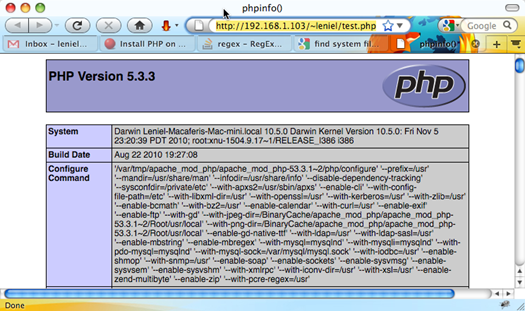
Testing PHP installation with its own configuration’s information
Figure 3 - Testing PHP installation with its own configuration’s information

If your PHP installation is OK, the test page will display PHP's information. If it displays the page code, you need to restart the Apache server.

You can restart Apache by entering the following in Terminal:

sudo apachectl restart

Try to reload the page again. Everything should work.

Well done!. Now you can play with PHP on your Mac computer and write some neat codez. :)

Caveat
When I tried to restart Apache server I got the following error:

ulimit: open files: cannot modify limit: Invalid argument

I resorted to this solution: Mac OS X 10.6.5 broke my apachectl

Practical use of Right function with Google Docs

Last time I showed you the Practical use of CountIf with Google Docs Spreadsheet.

Today I’m showing a practical use of a function called Right that can help you in a lot of situations.

Consider this sample spreadsheet:

I’m using the above spreadsheet to keep track of my progress during online theoretical practice tests for my first driver’s license.

I like math so I wanted to know how many tests people have taken or how many tests have been served by the server since my last test.

The Right function is being used in the column named ‘’Tests since last’’ starting at the second practice test I’ve taken. For example, the actual formula in cell C4 is this:

C4 = right(B4, 7) - right(B3, 7)

Let’s break this thing and explain each piece:

B4 contains the URL that points to the practice test I took. In this case the URL is this:

http://www.provadetran.com.br/simulado_termino.php?simulado=4396981

As you see, there’s a number at the end of the URL. This number has 7 digits of length and is a sequential that identifies each test. This allows me to go to the test to review what I did right and what I did wrong at a later time.

Well, to answer that intriguing question I need to subtract this number from the number present in the URL just above cell B4, namely B3. Now look at the formula in cell C4 above. It does just that. The right function is giving me the last 7 characters of the URL. Last because it gets the characters from right to left. If you wanted to get the first 7 characters you’d use the left function instead.

The right function has this form: RIGHT(text, number). It defines the last character or characters in a text string. Text is the text of which the right part is to be determined. Number (optional) is the number of characters from the right part of the text.

Easy to understand, isn’t it?

Let’s do the math making the substitution of values:

C4 = right(B4, 7) - right(B3, 7)
C4 = 4396981      - 4396181
C4 = 800

Now I know that from the time I took the first practice test on 11/25 to the second test on the same day but at a different time 800 tests have been served. This is more of a curiosity metric than anything. I like math anyways. :o)

This was a simple and practical use of the right function that came in handy in this situation.

Using jQuery to disable/enable and check/uncheck Radio Buttons on Date selected

Motivated by this question on StackOverflow - Disable radio button depending on date, I decided to help and here I’m with another code snippet post.

This time I show you how to use jQuery UI and its Datepicker control to control a set of radio buttons (only 2 in this post to make things easier) that have their state (enabled/disabled) changed depending on the date selected by the user.

Here’s the code:


<!DOCTYPE html>
<html>
<head>

   
<meta charset="UTF-8" />
    
   
<title>jQuery UI - Datepicker & Radio Buttons</title>

   
<!-- Linking to jQuery stylesheets and libraries -->
   
<link rel="stylesheet" href="http://ajax.googleapis.com/ajax/libs/jqueryui/1.8.7/themes/base/jquery-ui.css" type="text/css" media="all" />

   
<link rel="stylesheet" href="http://static.jquery.com/ui/css/demo-docs-theme/ui.theme.css" type="text/css" media="all" />
   
   
<script src="http://ajax.googleapis.com/ajax/libs/jquery/1.4.4/jquery.min.js" type="text/javascript"></script>

   
<script src="http://ajax.googleapis.com/ajax/libs/jqueryui/1.8.7/jquery-ui.min.js" type="text/javascript"></script>
   
   
<script src="http://jquery-ui.googlecode.com/svn/tags/latest/external/jquery.bgiframe-2.1.2.js" type="text/javascript"></script>

   
<script src="http://ajax.googleapis.com/ajax/libs/jqueryui/1.8.7/i18n/jquery-ui-i18n.min.js" type="text/javascript"></script>

</head>

<body>

   
<script>

   
$(function()
    {
       
$("#datepicker").datepicker
        ({          
           
// Event raised everytime a date is selected in the datepicker
            onSelect: function(date)
            {
               
// Self explanatory :) - used to get today's date
                var today = new Date();

               
// Business logic to change radio buttons' state                 if($("#datepicker").datepicker("getDate") > today)
                {
                   
$("#radioButton1").attr('disabled', true);
                   
$("#radioButton2").attr('disabled', false); 
                }
               
else
                {
                   
$("#radioButton1").attr('disabled', false);
                   
$("#radioButton2").attr('disabled', true); 
                }
            }
        });

       
// Just setting the default localization for the datepicker
        $.datepicker.setDefaults($.datepicker.regional['']); 
    });
    
   
</script>

   
<p>Date: <input id="datepicker" type="text"></p>

   
<input id="radioButton1" type="radio" value="myValue1" name="radioButton1"/>Radio button 1<br/>
   
<input id="radioButton2" type="radio" value="myValue2" name="radioButton2"/>Radio button 2

</body>

</html>

If you wanted to control the state (checked/unchecked) you’d have to make a small change in the code as follows:


// Business logic to change radio buttons' state                 if($("#datepicker").datepicker("getDate") > today)

   
$("#radioButton1").attr('checked', true); 
   
$("#radioButton2").attr('checked', false);  

else 

   
$("#radioButton1").attr('checked', false); 
   
$("#radioButton2").attr('checked', true);  
}

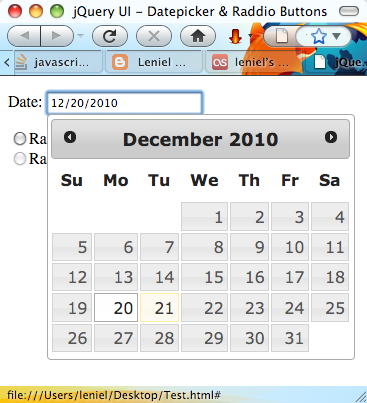
When you open the page for the first time you get this screen:

Page when viewed for the first time (both radio buttons are enabled)
Figure 1 - Page when viewed for the first time (both radio buttons are enabled)

If you pick a date that is greater than today’s date, Radio button 1 is disabled (turns to gray) and Radio button 2 is enabled according to the logic implemented.

Radio button 1 is disabled (turns to gray) and Radio button 2 is enabled
Figure 2 - Radio button 1 is disabled (turns to gray) and Radio button 2 is enabled

Otherwise, Radio button 2 is disabled and Radio button 1 is enabled:

Radio button 2 is disabled and Radio button 1 is enabled
Figure 3 - Radio button 2 is disabled and Radio button 1 is enabled

Hope you make good use of it.